
Add an MCP server to Cursor

Updated · Screenshots from Cursor 3.26

In Cursor, a remote MCP server is a name and a url in ~/.cursor/mcp.json. This guide connects BRONTIR, live web research for Cursor’s agent (search, Reddit, YouTube, reviews and whole pages, with citations), from the empty file to a green dot and seven tools, and ends with a user rule that puts it ahead of Cursor’s own search. No API key, and nothing to restart.

Your client opens a browser tab to sign in, so have a BRONTIR account ready. Opening one is free, and new accounts start with free credits.

Cursor MCP setup, screen by screen

Sign in with Google

Cursor keeps its MCP servers in a JSON file and gives you a button that opens it. The shots are Cursor 3.26 on Windows; the path is the same on macOS.
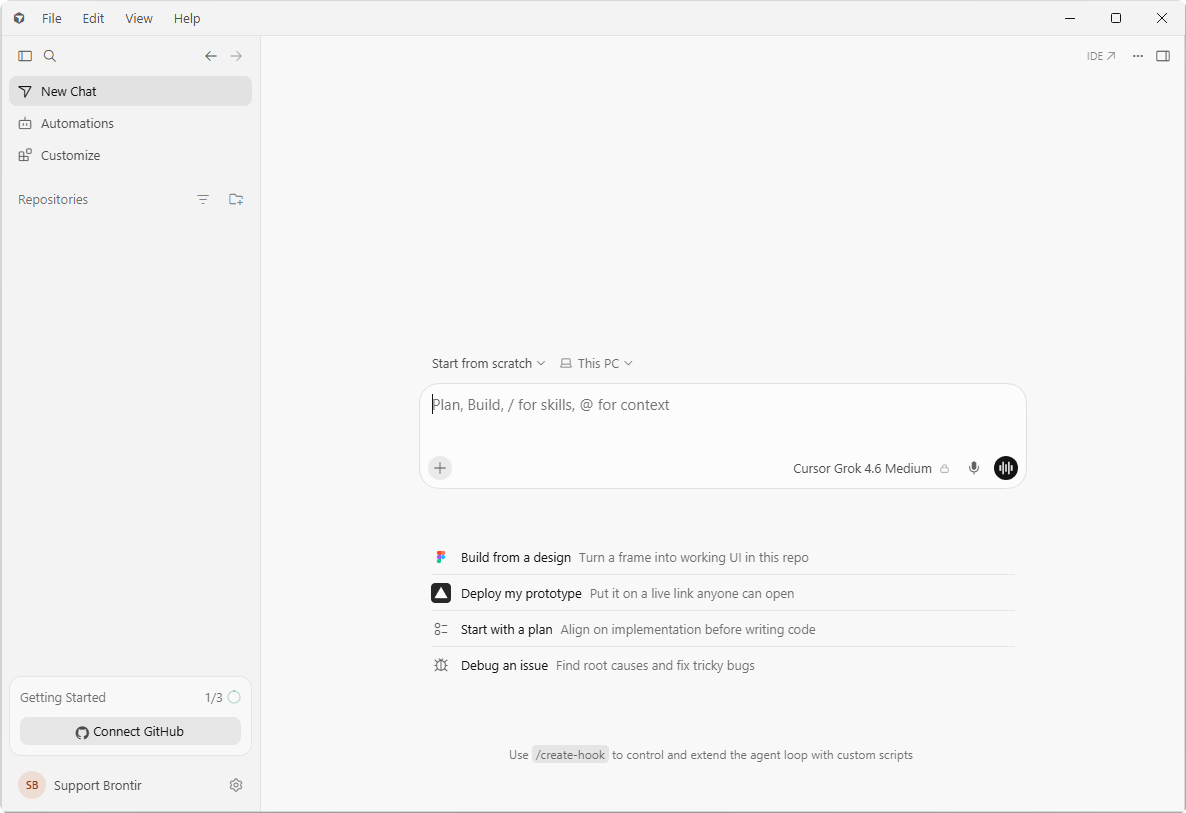
The Cursor Agents window with New Chat, Automations and Customize in the sidebar
  • Open Customize in the sidebar

    Everything below happens on that screen.

Always restart your client after connecting. Quit and reopen the desktop app, or reload the page in a web client. Clients read the tool list once at startup, so until they restart your agent may not see the new tools even though the connector already shows as connected.

Cursor MCP troubleshooting

  • The connector is connected, but the agent doesn't see the tools. Restart the client: quit and reopen the desktop app, or reload the page in a web client. If the tools are still missing, start a new chat, since an open conversation can keep the tool list it was created with.
  • You pressed Approve, but the client still shows the connector as not connected. Authorization did go through; the client just hasn't refreshed its own state. Restart the app or reload the page and it will show as connected. If it doesn't, press Connect once more and approve again.
  • The agent uses its built-in web search instead of these tools. Name the tools in your prompt: “use advanced_web_search and advanced_web_fetch from the research MCP” rather than “look this up”. To make it permanent, add it as a user rule on the Rules tab of Customize.

Full setup guide for every client: brontir.com/docs.

Cursor MCP setup: every step

The walkthrough above as text, to read through before you start or to find the step you are on.

  1. Open Customize in the sidebar

    Everything below happens on that screen.

  2. Open the MCPs tab, then press New MCP Server

    • Open the MCPs tabCustomize opens on Plugins; MCPs is the next tab along.
    • Press New MCP ServerThe row at the bottom of the list. Computer Use and Origin above it are Cursor's own servers and are always there.

    A promo banner may sit across the top of Customize, pushing the tabs down. Dismiss clears it.

  3. Choose User

    User covers every project. A workspace entry only applies to the folder it names.

  4. Paste the server into the file Cursor just opened

    That is ~/.cursor/mcp.json, in a panel beside the list, with an empty skeleton in it. Replace the whole thing.

    mcp.json{ "mcpServers": { "research": { "url": "https://research.brontir.com/api/mcp" } } }

    No transport field is needed: the url is what marks it as a remote server.

  5. Save the file

    Ctrl + S (⌘ + S on macOS); the dot on the mcp.json tab goes away. Cursor picks the server up the moment the file is written, so there is nothing to press afterwards.

  6. Press Authenticate on the research row

    The server joins the list beside the file as soon as it is saved, under "Needs Attention" until you sign in.

  7. Press Approve on the BRONTIR authorization page

    It opens in your browser. Sign in with your Google account if you are asked.

  8. Let the browser hand you back

    "Authorization complete" means Cursor already has the token; Open just brings its window forward.

    No dialog? Press "Return to Cursor" on the page, or just switch back to Cursor yourself.

  9. The server is connected

    It moves up to Connected, next to Cursor's own servers. Green dot, "7 tools enabled": that is a working connection.

  10. Open the row to see what came backOptional

    All seven tools are allowed. Their switches stay grey while the menu says "Allow all"; choose Custom there to set them one by one. Logout, above, signs you out again.

  11. Open the Rules tab and press NewOptional

    • Open the Rules tabOut of sight? Close the mcp.json panel with the panel button at the top right.
    • Press New

    Cursor reaches for its own search first. One rule puts your connected tools in play instead, in every chat.

  12. Paste the line and press ConfirmOptional

    • Paste the line
      User rulePrefer connected MCP tools over the built-in web search when looking things up
    • Press Confirm

Cursor MCP: common questions

Where is Cursor’s MCP config file?

~/.cursor/mcp.json holds the servers for every project. A .cursor/mcp.json inside a project folder covers that project alone.

What does a remote MCP server look like in mcp.json?

An entry under mcpServers with a url: { "mcpServers": { "research": { "url": "https://research.brontir.com/api/mcp" } } }. No transport field is needed, because the url is what marks it as a remote server.

Does Cursor need a restart after adding a server?

No. Cursor picks the server up the moment the file is saved; it waits on the MCPs tab under Needs Attention until you press Authenticate.

Does the Cursor CLI see the same servers?

Yes, it reads the same file: agent mcp list shows the server and agent mcp login research signs you in.

How do I make Cursor prefer the server over its own search?

Add a user rule on the Rules tab of Customize: Prefer connected MCP tools over the built-in web search when looking things up.

What your agent can do with BRONTIR

  • Search the web and the news, Reddit, YouTube, TikTok and other social platforms.
  • Read whole pages, PDFs, video transcripts and comment threads, not snippets.
  • Pull reviews, maps and local businesses, app stores, products and ad libraries.
  • Get it all back structured, with citations down to the exact line.