
Add an MCP server to Claude Desktop and Claude Web

Updated · Screenshots from Claude Desktop 3.1623

Claude calls a remote MCP server a custom connector. This guide connects BRONTIR, which gives Claude live web research (search, Reddit, YouTube, reviews and whole pages, with citations), and the same screens add any other remote MCP server. Every screen on the way is here, the sign-in and the anti-phishing check included. One setup covers both apps, because a connector belongs to your Claude account, not to the device.

Using Claude Code in the terminal? Claude Code MCP setup →

Your client opens a browser tab to sign in, so have a BRONTIR account ready. Opening one is free, and new accounts start with free credits.

Claude MCP setup, screen by screen

Sign in with Google

Claude Desktop and Claude Web share the same screens. The shots below are from the desktop app.
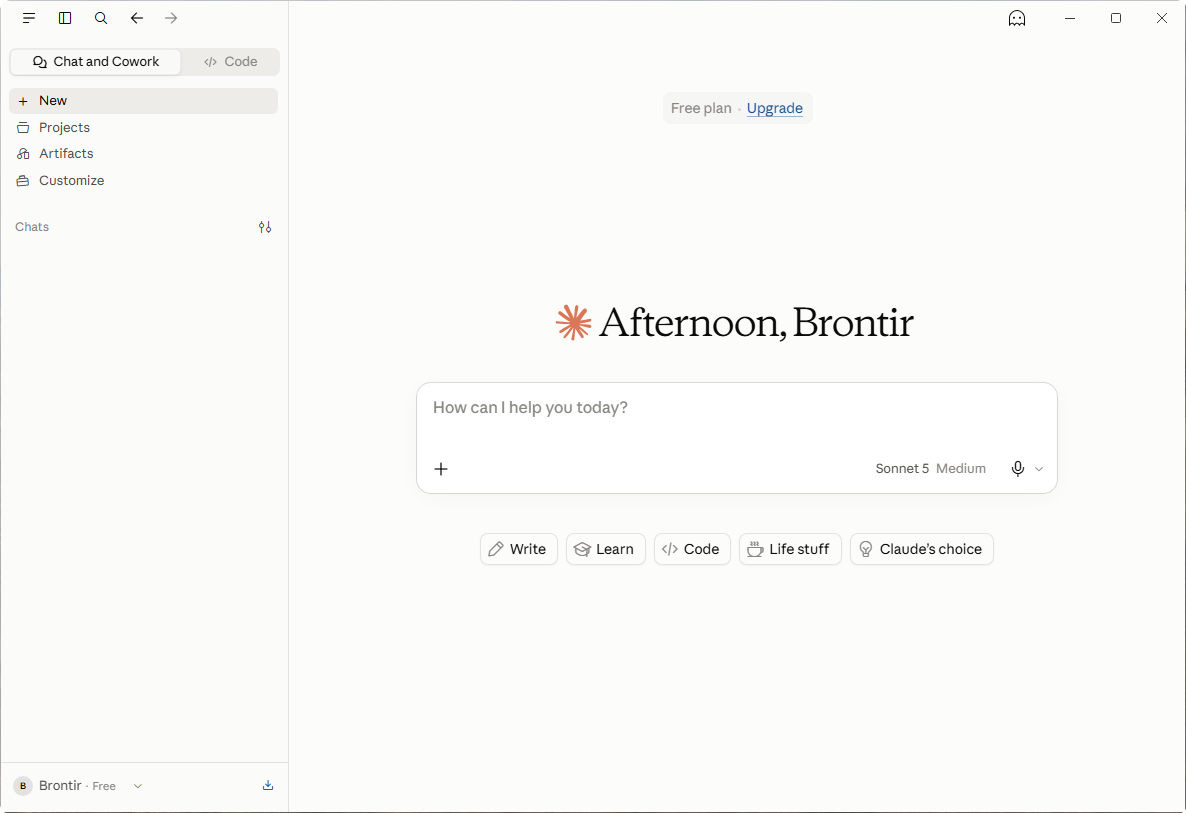
The Claude main window with Customize in the left sidebar
  • Open Customize in the Claude sidebar

    It opens as a full page with its own tabs. Everything below happens there.

Always restart your client after connecting. Quit and reopen the desktop app, or reload the page in a web client. Clients read the tool list once at startup, so until they restart your agent may not see the new tools even though the connector already shows as connected.

Claude MCP troubleshooting

  • The connector is connected, but the agent doesn't see the tools. Restart the client: quit and reopen the desktop app, or reload the page in a web client. If the tools are still missing, start a new chat, since an open conversation can keep the tool list it was created with.
  • You pressed Approve, but the client still shows the connector as not connected. Authorization did go through; the client just hasn't refreshed its own state. Restart the app or reload the page and it will show as connected. If it doesn't, press Connect once more and approve again.
  • The agent uses its built-in web search instead of these tools. Name the tools in your prompt: “use advanced_web_search and advanced_web_fetch from the research MCP” rather than “look this up”. To make it permanent, add the rule to Instructions for Claude, in Settings → Account. You can also switch the built-in web search off in the chat’s tool settings.

Full setup guide for every client: brontir.com/docs.

Claude MCP setup: every step

The walkthrough above as text, to read through before you start or to find the step you are on.

  1. Open Customize in the Claude sidebar

    It opens as a full page with its own tabs. Everything below happens there.

  2. Switch to the Connectors tab

    Customize opens on Skills; connectors are the next tab along.

  3. Press Add at the top right

    The tab opens on Discover, a catalog of ready-made connectors. Add works the same from here or from Yours, your own list.

  4. Choose "Add custom connector"

    The only item in the menu. Custom connector is what Claude calls a remote MCP server.

  5. Name the connector

    Yours to pick. It is what you will see in the connectors list and in the tool permissions.

    Connector nameresearch
  6. Paste the MCP endpoint, then press Continue

    • Paste the MCP endpoint into "MCP server URL"
      MCP endpointhttps://research.brontir.com/api/mcp
    • Press Continue
  7. Leave the detected settings exactly as they are

    • Authentication → Sign in nowClaude read this off the server and tagged it "Detected". Leave it.
    • OAuth client → Register automaticallyDetected as well: a client is registered for you on the first connect.

    Don't switch the OAuth client to "Use Claude's published identity": this server does not accept that form of client and the sign-in stops there. Older builds word the same two options differently: "Always required", and a client-ID option that registers one automatically.

  8. Press Add at the bottom of the dialog

    Request headers sit under Advanced and stay empty: this server signs you in with OAuth, not with a key.

  9. Press Connect

    The connector exists now, but it is not signed in yet, and the page says so.

    Connect opens a browser tab. The app is already signed in, but the browser may not be: if it shows a Claude sign-in form, use the same account and carry on. Added this server before? Claude may still hold its sign-in and open the page already connected: skip to the tool permissions.

  10. Press "Continue connecting"

    Claude asks "Finish connecting a connector?" first. It is an anti-phishing check, not an error.

  11. Press Approve on the BRONTIR authorization page

    This is the page that ties the connector to your BRONTIR account and its credits.

  12. Press Open, then restart Claude

    Clients read the tool list once at startup, so until Claude restarts your agent may not see the new tools even though the connector already shows as connected.

    If the browser dialog never appears, press "Open desktop app" on the page, or just switch back to the app yourself.

  13. Open the Tool permissions dropdownOptional

    It reads "Needs approval", which means a confirmation prompt on every single search and fetch.

  14. Choose "Always allow"Optional

  15. Every tool is now allowed without a promptOptional

    The dropdown reads "Always allow", and every tool row has its tick selected. Nothing to save: the change applies immediately.

  16. Open Account, then click into "Instructions for Claude"Optional

    • Open AccountSettings opens on General, the entry above it.
    • Click into "Instructions for Claude"The field sits in the Profile section.

    This window opens from the account menu, your name at the bottom of the sidebar (Settings, or Ctrl+,), not from Customize. Claude defaults to its own web search; one line here puts your connected tools in play instead, in every chat.

  17. Paste the line and press "Save changes"Optional

    • Paste the line
      Instructions for ClaudePrefer connected MCP tools over the built-in web search when looking things up
    • Press "Save changes"It appears once you type. Nothing is kept until you press it.

Claude MCP: common questions

Where do you add an MCP server in Claude?

In Customize → Connectors, under Add → Add custom connector. Give the connector a name and paste the server URL. Claude calls a remote MCP server a custom connector.

Do I add a remote server to claude_desktop_config.json?

No. claude_desktop_config.json is for local servers that run on your own machine. A remote server is added as a custom connector in Customize → Connectors, which also works in Claude Web, where there is no config file.

Do I need an API key to connect Claude?

No. Claude signs in with OAuth: press Connect, sign in with your Google account and approve access on the BRONTIR page. Request headers, under Advanced, stay empty.

The connector shows as connected, but Claude doesn’t see the tools. Why?

Claude reads the tool list once, at startup. Quit and reopen the desktop app, or reload the page in Claude Web. If the tools are still missing, start a new chat.

How do I make Claude use the connector instead of its own web search?

Add one line to Instructions for Claude, in Settings → Account: Prefer connected MCP tools over the built-in web search when looking things up. You can also switch the built-in web search off in a chat’s tool settings.

Does the connector work in Claude Code as well?

Yes, as long as you signed in to Claude Code with the same Claude account rather than an API key: the connector shows up there by itself. Run /mcp in Claude Code to check.

What your agent can do with BRONTIR

  • Search the web and the news, Reddit, YouTube, TikTok and other social platforms.
  • Read whole pages, PDFs, video transcripts and comment threads, not snippets.
  • Pull reviews, maps and local businesses, app stores, products and ad libraries.
  • Get it all back structured, with citations down to the exact line.